Plan Management Guide

Small Employer | 2026

Select Health Link Resources


Select Health Link is our agent and employer portal. Link allows you to manage your group health plan electronically. This includes adding and terminating new employees, managing and paying monthly premiums, and accessing member payment summaries and contracts.
Billing

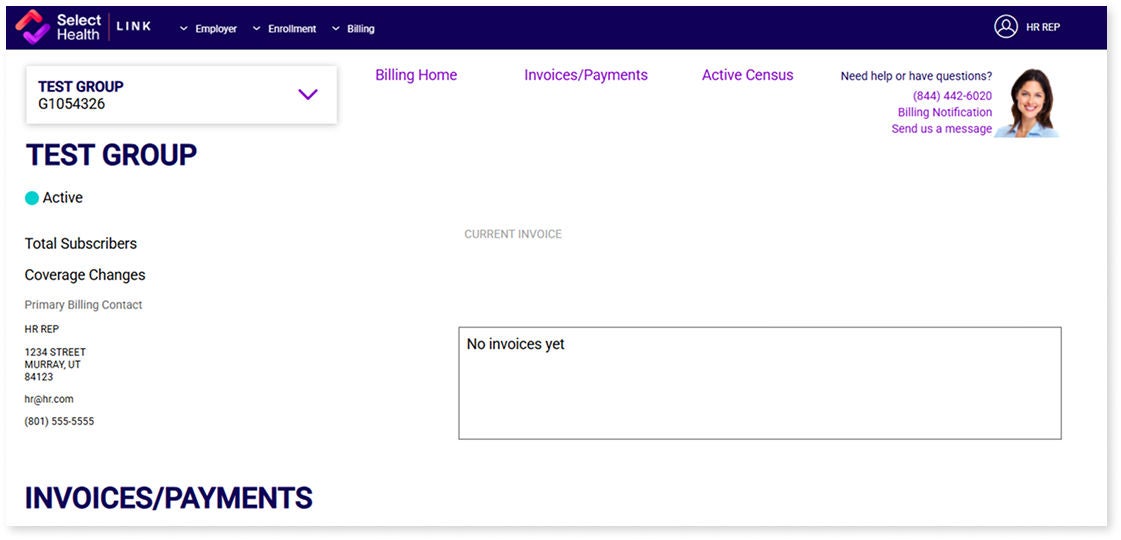
The Billing feature on Link allows you to view invoices and payment history. To access this information, click Billing on the main navigation bar. If you have access to more than one group, you will need to search the group name before billing information will load. Invoices and statements will be available for viewing near the bottom of the page. Click Billing Notification in the top-right corner to get email alerts when your statement is ready to view. View previous payments by clicking Payments. Additionally, you have the option to print invoices by selecting an invoice and then clicking print.

Select Health group billing dashboard with no invoices

Member maintenance

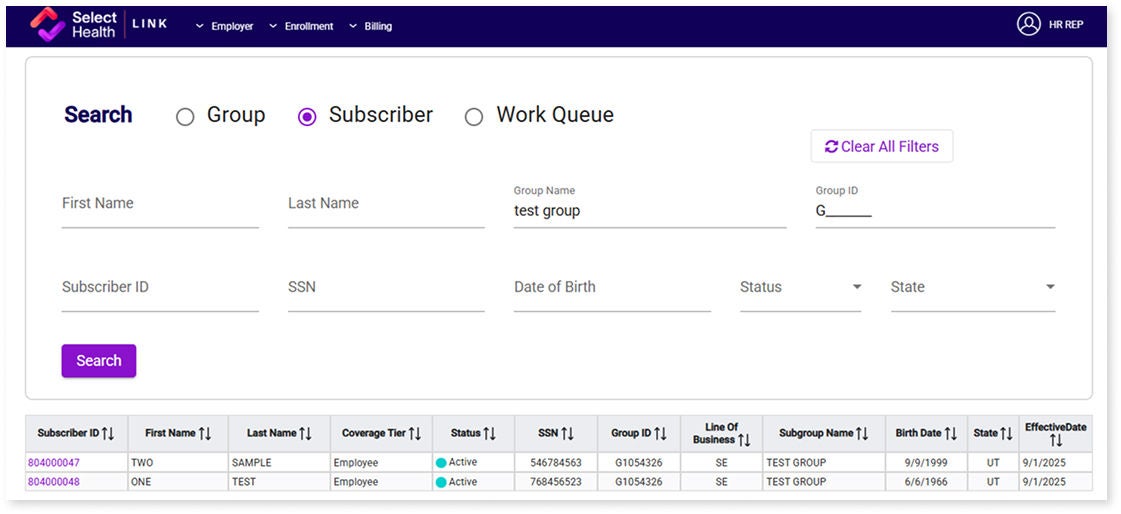
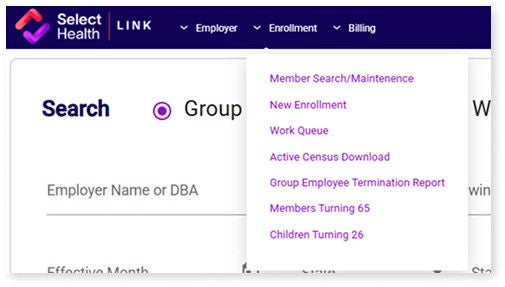
Member Maintenance is used to make electronic changes such as terminations, demographic updates, plan changes, or adding new hires due to qualifying events. To access these features, hover over the Enrollment header on the main navigation bar and click Member Search/Maintenance. Enter employee information in at least one field and click Search.

Select Health enrollment dashboard with dropdown menu options

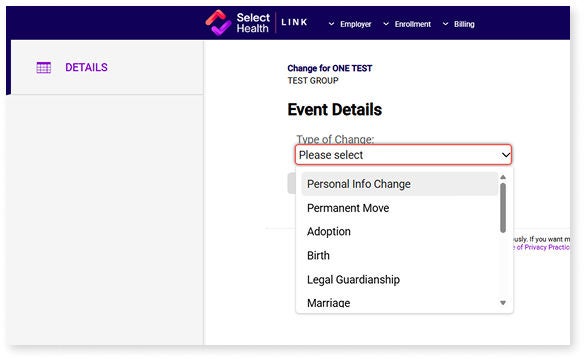
Click the Make a Change button, select from the available reasons, and continue through all necessary pages to fully submit your request. If documentation is required, the system will prompt you to upload the necessary information. Be sure to click through all necessary pages to ensure you’ve submitted your request.

Health Insurance Subscriber Search Interface Screenshot
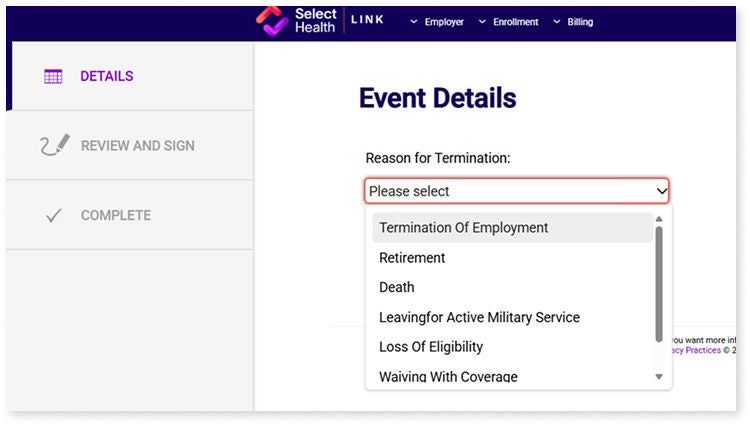
Select Health event details termination reason dropdown

New enrollments

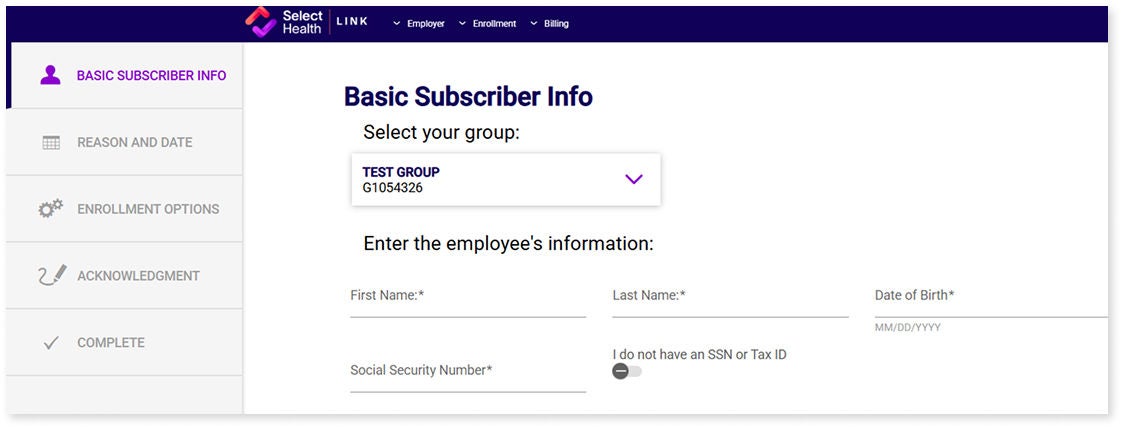
To add a new hire or an employee with a qualifying event, hover over Enrollment on the header, then click New Enrollment. If you have access to more than one group, enter the employer name in the search box, then click on the group name. Enter the employee’s information and click Continue.

Online health insurance enrollment form interface screenshot

Terminations

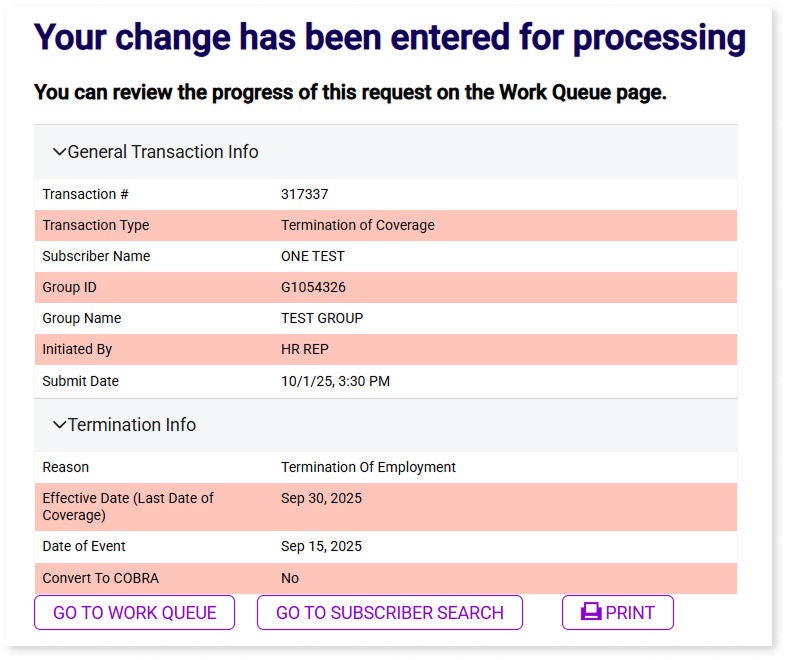
To terminate an employee, hover over Enrollment on the top menu and select Member Search/Maintenance. Select the employee by clicking on the highlighted blue ID number. On the next screen, click Terminate Subscriber. Select the reason for termination and click Save and Continue.

Select Health online form event details dropdown menu

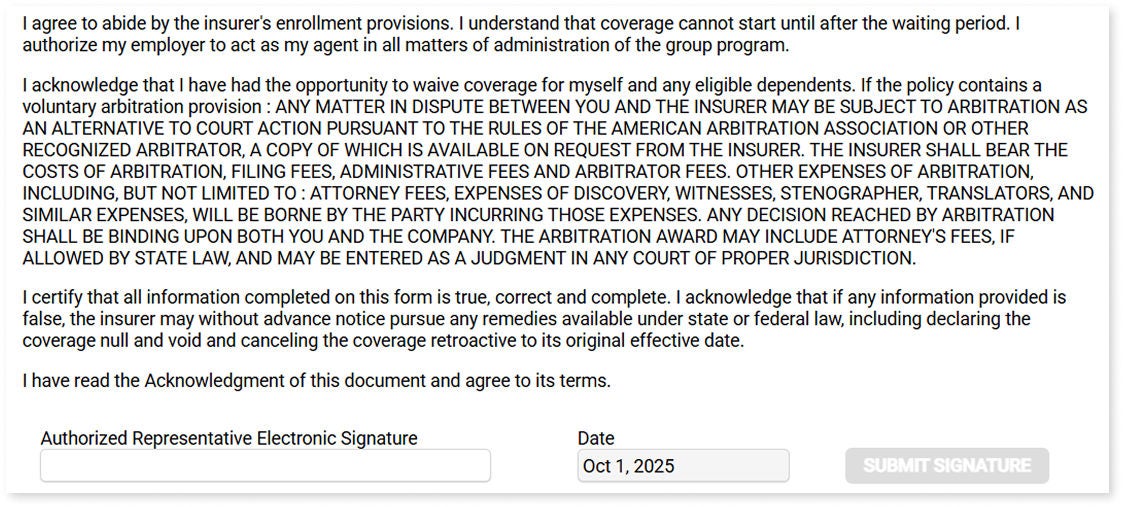
You will be directed to a new screen to verify the changes and sign your name, then click Submit.

Insurance Acknowledgment Form with Signature Field
Termination of Coverage Request Confirmation Screen